
How to Fix No Space After Bullet List in WordPress
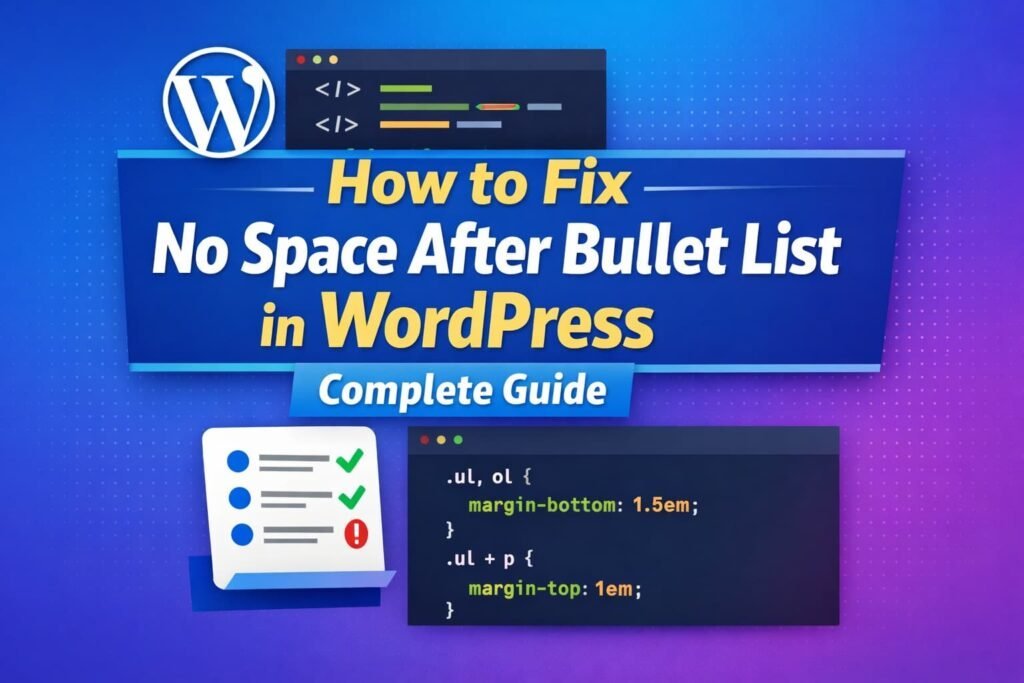
If your WordPress blog has no space between the last item in a bullet list and the paragraph that follows, you’re not alone. This is one of the most common formatting issues WordPress users face, especially when using modern lightweight themes. The problem usually appears after publishing content — everything looks fine in the editor, but on the frontend the paragraph sticks directly to the list. In this guide, you’ll learn: Let’s fix it properly. Why There Is No Space After a Bullet List in WordPress The issue is not caused by WordPress itself. It happens because most modern themes remove the default browser spacing between elements like <ul> and <p>. By default, browsers apply margin spacing automatically. But many performance-focused WordPress themes override it using CSS like this: When that happens, the paragraph that follows the list appears glued to it. This is especially common in themes like: It’s not a bug. It’s a styling decision. But from a readability perspective, it creates poor visual flow. How to Fix the Spacing Issue (Permanent Solution) The cleanest and most professional fix is adding custom CSS. Step 1: Go to WordPress Dashboard Appearance → Customize → Additional CSS Step 2: Add This Code Step 3: Publish and Clear Cache If you use a caching plugin, clear it. Then hard refresh your browser. That’s it. The spacing will now appear correctly across your entire site. Why This CSS Works The first rule restores bottom spacing to lists. The second rule ensures that when a paragraph directly follows a list, it has proper breathing room. The !important is used only if your theme aggressively overrides spacing. Gutenberg vs Classic Editor: Is There a Difference? Yes. Gutenberg (Block Editor) Lists are wrapped in a .wp-block-list class. That’s why the CSS includes it. If you do not target .wp-block-list, spacing may not change. Classic Editor Classic editor uses standard HTML markup without block classes. Targeting ul and ol is enough. Why This Matters for SEO This is more important than it looks. Poor spacing affects: Google measures engagement signals. If content feels cramped, users leave faster. Clean spacing improves: Better formatting = better user signals = stronger rankings over time. How Much Space Should You Use? For blog readability, ideal values are: These values improve scan-ability and make long-form content easier to consume. Alternative Fix (Not Recommended Long-Term) You could insert a Spacer block manually below every list in Gutenberg. But this: A global CSS fix is cleaner and more professional. Advanced Fix (If It Still Doesn’t Work) Some themes use very specific selectors like: In that case, use: If that still fails, inspect the element using browser developer tools and identify the exact selector overriding margin. How to Prevent Future Formatting Issues If you want to position yourself as a WordPress authority, remember this: Most formatting problems are caused by: The solution is almost always: Understanding CSS structure separates beginners from professionals. Frequently Asked Questions Is this a common WordPress issue? Yes. Many users search for: It is very common with lightweight themes. Will this affect mobile layout? No. The fix improves spacing on both desktop and mobile. Does this impact performance? No. Adding a few CSS lines has zero measurable performance impact. Final Thoughts The “no space after bullet list” issue is not a WordPress bug. It’s a theme styling decision. Fixing it correctly improves: Small formatting details create big perception differences. If you are building authority as a WordPress solution provider, solving these micro-problems and explaining the why behind them builds trust and credibility. WordPress is not about installing plugins. It’s about understanding how structure, styling, and user experience work together. And this issue is a perfect example.