
How to Pin Multiple Locations on Google Maps
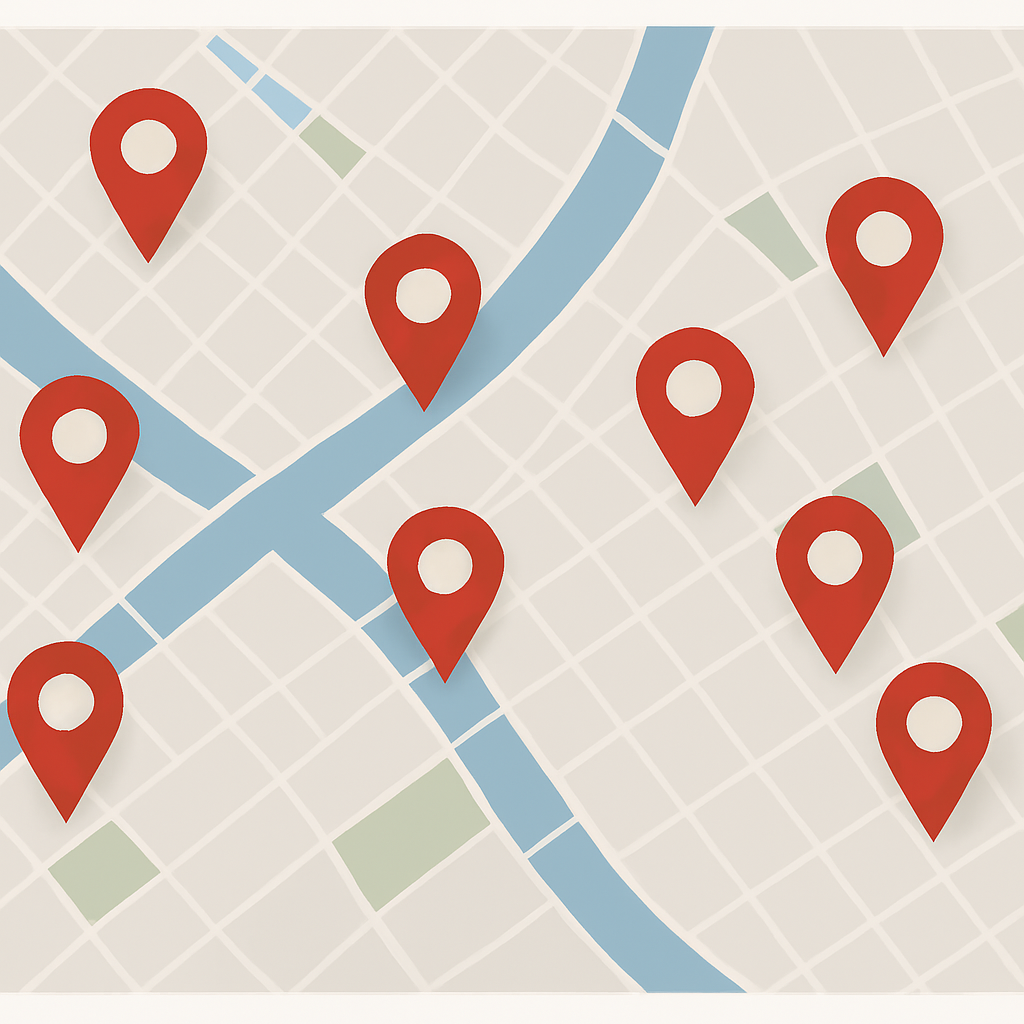
In an age where we can locate the nearest taco truck within 60 seconds but can’t remember where we parked yesterday, tools like Google Maps are nothing short of modern miracles. Whether you’re planning a cross-country road trip or organizing a complex sales route, learning how to pin multiple locations on Google Maps can save you time, stress, and a few extra gray hairs. In this guide, we’ll walk you through exactly how to do it—step-by-step—on both desktop and mobile, and even how to jazz things up with custom pins and spreadsheet imports. Because honestly, why just know where you’re going when you can look good getting there? What Does It Mean to “Pin” a Location? Let’s start with the basics. Pinning a location in Google Maps is just a fancy way of saying you’re placing a marker on a specific spot—like saying, “Hey, this is important. Remember this!” A pin can be used for: And when you’re looking to pin more than one location? That’s where things get interesting—and Google Maps shines. Why Pin Multiple Locations? You could be a sales rep trying to hit five client meetings in one day, or maybe you’re just planning the ultimate taco crawl with friends. Either way, plotting more than one point on a map gives you clarity, efficiency, and a powerful bird’s-eye view of your journey. Here are a few scenarios where you’d need to know how to pin multiple locations on Google Maps: Method 1: Pin Multiple Locations with Google My Maps (Desktop) This is your best friend if you need customization, control, and clarity. Step-by-step: You can also click the pin icon under the search bar to manually drop a pin anywhere—ideal if your GPS isn’t quite sure where your cousin’s new farmhouse really is. Method 2: Importing Multiple Locations from a Spreadsheet If you’ve got a list of addresses, you can let Google do the heavy lifting. Here’s how: This feature is especially useful for businesses with large datasets—because no one wants to manually pin 237 franchise locations. Method 3: Mobile Workarounds The Google Maps mobile app doesn’t let you build custom maps from scratch, but here’s the workaround: It’s like desktop did the homework, and your phone’s just here to show it off. Creating a Route Between Pinned Locations Want to go one step further and build a route? Inside Google My Maps: Perfect for delivery planning, tour routes, or your much-needed post-wedding food hop. Customizing Your Map Like a Pro Once you’ve pinned your locations, don’t stop there. This is especially helpful for business owners who want to distinguish between customer locations, distribution centers, and sales zones. Sharing and Embedding Your Map When your masterpiece is complete: Want to know how to pin multiple locations on Google Maps and turn it into a business tool? This is how. Embed it on your website to help customers find your stores, services, or events with zero confusion. Conclusion So now you know how to pin multiple locations on Google Maps, whether it’s for business strategy or vacation glory. With just a little bit of clicking (and the occasional spreadsheet magic), you can create customized, color-coded, sharable maps that look good and get the job done. If you need help integrating custom maps into your website or want to use Google Maps creatively for your brand or local SEO, SE Rank Pro—a digital marketing company in Chandigarh—can help. We specialize in making your business visible—pin by pin. Visit us at SE Rank Pro to learn more.